
The Ultimate Free
Subtitle Editor for PC
Create, adjust, translate, and sync subtitles with precision. Featuring built-in AI Whisper transcription, waveform visualization, and support for 300+ subtitle formats.
What Is Subtitle Edit?
The go-to subtitle editor for professionals, translators, and content creators worldwide.
A Subtitle Editor Built for Real Work
Subtitle Edit is a free, open-source desktop application built specifically for creating, editing, and synchronizing video subtitles. Developed by Nikolaj Lynge Olsson and maintained actively since 2010, it has grown into one of the most widely used subtitle tools on Windows. The application reads and writes over 300 subtitle formats, including SubRip (.srt), WebVTT (.vtt), Advanced Sub Station Alpha (.ass), MicroDVD, and dozens of broadcast formats used in professional post-production.
Unlike basic text editors or online subtitle generators, Subtitle Edit provides a full editing environment with a built-in video player, audio waveform display, and spectrogram visualization. You can see exactly where speech begins and ends in the audio track, then drag subtitle timing markers to match. This makes synchronization faster and far more accurate than guessing timecodes manually.
AI-Powered Transcription with Whisper
One of the most significant additions in recent versions is the integration of OpenAI Whisper, a speech recognition model that runs entirely on your local machine. Point it at any video or audio file, and Subtitle Edit will generate timestamped subtitles automatically. The accuracy is impressive across dozens of languages, and because it runs locally, your files never leave your computer. For anyone working with large volumes of video content, this alone saves hours of manual transcription work.
Translation and Localization
Subtitle Edit connects directly to Google Translate, Microsoft Translator, and DeepL for automated subtitle translation. You can translate an entire subtitle file from one language to another in seconds, then review and refine the output. Combined with the built-in spell checker (powered by Hunspell/OpenOffice dictionaries), the tool covers the full workflow from transcription to translation to quality control.
Key Features & Capabilities
Everything you need to create, sync, translate, and fix subtitles in one application.
AI Audio Transcription (Whisper)
Generate subtitles automatically from any audio or video file using OpenAI’s Whisper model. Runs locally on your machine – no internet needed, no data uploaded. Supports dozens of languages with high accuracy, and you can choose between different model sizes depending on your hardware.
Visual Waveform Sync
View your audio as a waveform or spectrogram directly inside the editor. Drag subtitle start and end points to match speech patterns visually. This is significantly faster and more precise than entering timecodes by hand, especially for long-form video content.
Auto-Translation
Translate subtitle files into dozens of languages through built-in connections to Google Translate, DeepL, and Microsoft Translator. Process entire files at once, then review and polish the translations. Supports both free and API-key-based translation services.
300+ Format Support
Read, write, and convert between over 300 subtitle formats: SubRip (.srt), WebVTT (.vtt), ASS/SSA, MicroDVD, EBU STL, D-Cinema XML, TTML, and many broadcast-specific formats. Convert between any of them with a single click.
Spell Checker
Catch typos and grammatical errors with the integrated spell checker. Uses Hunspell and OpenOffice dictionaries, with support for downloading additional language packs directly within the application. Works across all subtitle formats.
OCR for Image-Based Subtitles
Extract text from DVD VobSub, Blu-ray SUP, and DVB subtitle streams using the built-in Tesseract OCR engine. The tool scans bitmap subtitle images, recognizes the characters, and converts them to editable text files complete with timecodes.
Auto Error Correction
Automatically detect and fix common subtitle problems: overlapping display times, missing spaces after periods, hearing-impaired markup removal, incorrect casing, double blank lines, and more. Run all fixes at once or review each one individually.
Built-in Video Preview
Preview subtitles overlaid on the actual video in real time. Compatible with DirectShow, VLC media player, and mpv backends. Jump to any subtitle, play specific segments, and see exactly how your text looks on screen before exporting.
Sync Adjustment Tools
Fix out-of-sync subtitles with multiple methods: apply a constant time shift to all subtitles, use point-sync to correct progressive drift, or use the visual sync tool that lets you match the first and last dialog lines and recalculates everything in between.
Merge and Split
Split a single subtitle file into multiple parts (useful for multi-episode releases) or merge several subtitle files into one. You can also split or merge individual subtitle lines, adjusting timing automatically as needed.
ASS/SSA Styling
For Advanced Sub Station Alpha (.ass) files, control fonts, colors, positioning, karaoke effects, and animation. Preview styled subtitles directly in the video player. Useful for anime fansubs, lyric videos, and any project that needs visual subtitle effects.
Plugin System
Extend functionality with downloadable plugins. The built-in plugin manager lets you browse, install, and update community-created add-ons that add new features, format converters, or workflow automations directly inside the application.
System Requirements
Subtitle Edit is lightweight and runs on most Windows systems. AI transcription benefits from more powerful hardware.
| Component | Minimum | Recommended |
|---|---|---|
| Operating System | Windows 7 (32-bit or 64-bit) | Windows 10 or 11 (64-bit) |
| Framework | .NET Framework 4.8 | .NET Framework 4.8 or newer |
| Processor (CPU) | 1 GHz single-core | Multi-core (for Whisper AI) |
| Memory (RAM) | 512 MB | 4 GB+ (8 GB for large Whisper models) |
| Storage | 50 MB for installation | 2 GB+ (with AI models downloaded) |
| Video Player | DirectShow (built-in) | VLC or mpv (better format support) |
| GPU (Optional) | Not required | NVIDIA GPU with CUDA (speeds up Whisper) |
The portable version has the same requirements but does not need installation. Linux users need Mono or the Avalonia build.
Download Subtitle Edit 4.0.15
Choose the download that fits your setup. The Windows installer is recommended for most users.
Windows Installer
Download Installer (.zip)Recommended for most users. Includes Start menu shortcuts and auto-update support.
Portable Version
Download Portable (.zip)No installation needed. Run from USB drive or any folder. Settings stored locally.
Linux / macOS / Online
View All ReleasesAvalonia build for Linux. macOS users can try the online version at nikse.dk.
Screenshots
See the actual interface before you download.
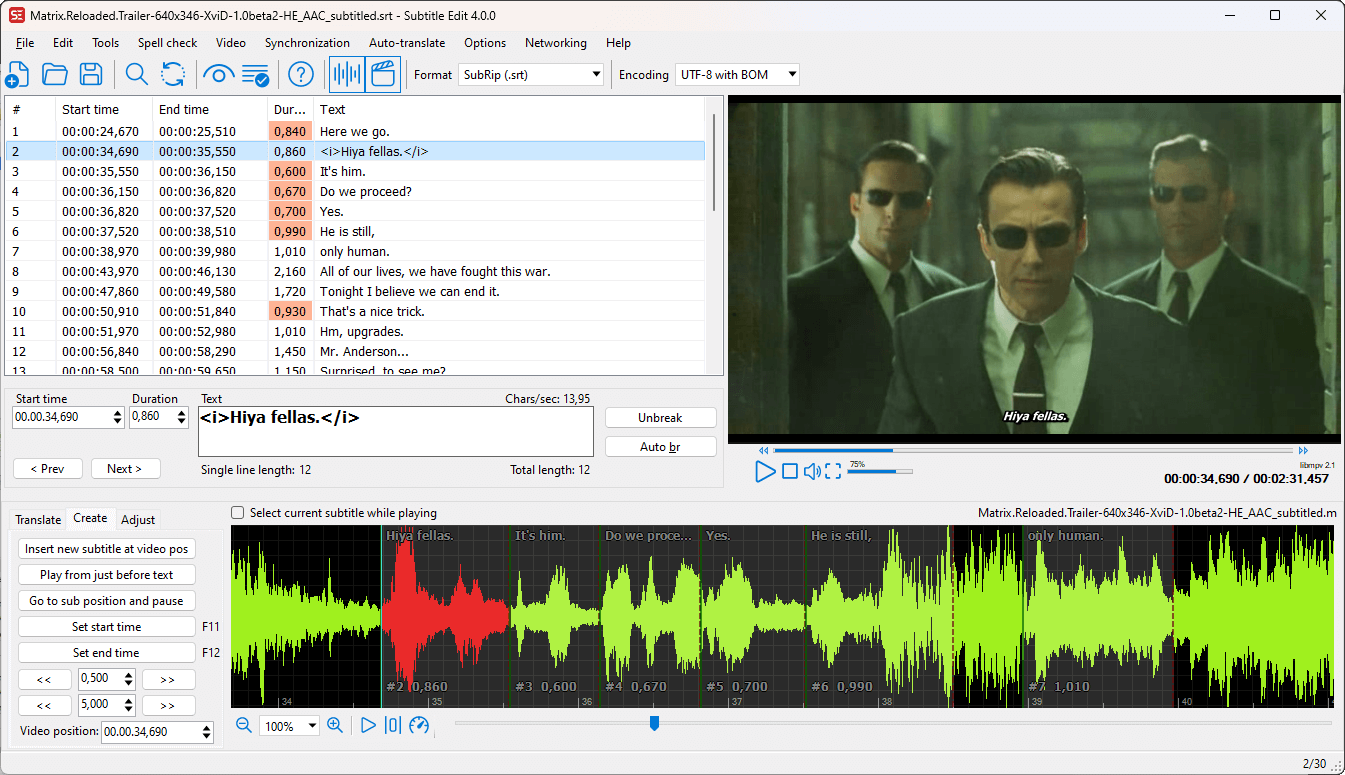
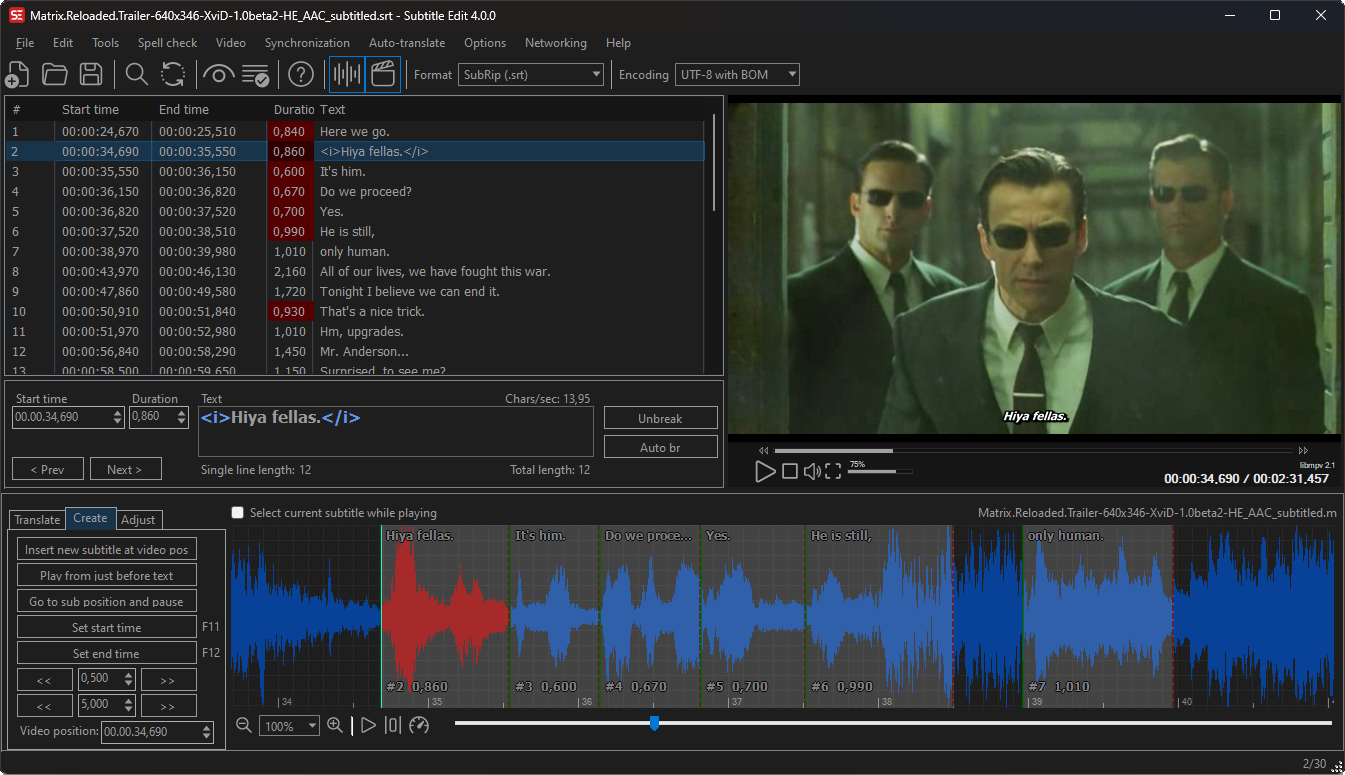
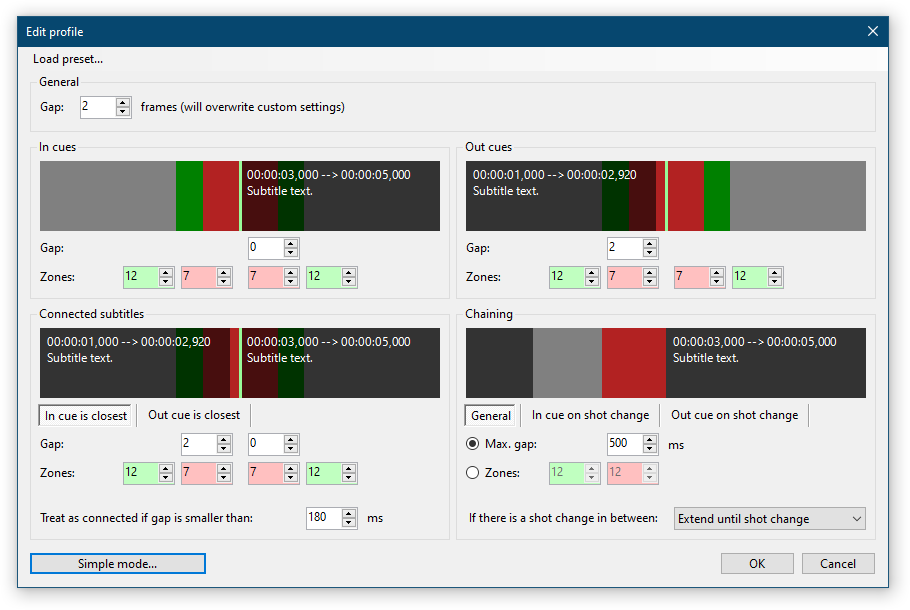
Installation & Setup Guide
Get up and running in under five minutes. Here is the full walkthrough from download to your first subtitle edit.
Download the Software
Head to our download section above and grab either the Windows Installer or the Portable Version. The installer is a .zip file containing the setup executable. The portable version is a standalone .zip you can extract anywhere.
Install or Extract
Installer: Extract the downloaded .zip, then double-click SubtitleEdit-4.0.15-Setup.exe. The setup wizard will walk you through: accept the GPL license, pick an install directory (the default is fine), and choose whether to create desktop shortcuts. The whole process takes about 30 seconds.
Portable: Extract SE4015.zip to any folder. Open the extracted folder and run SubtitleEdit.exe directly. No installation wizard needed.
Set Up the Video Player
When you first open Subtitle Edit, go to Options → Settings → Video player. The default DirectShow player works, but VLC or mpv provide better codec coverage. If you pick mpv, Subtitle Edit can download it for you automatically – just click the “Download mpv” button in the settings panel.
Download Spell Check Dictionaries
Go to Spell check → Get dictionaries to download language packs. Pick the languages you work with most often. Dictionaries are small (usually under 5 MB each) and integrate automatically once downloaded. You can add more languages later at any time.
Set Up Whisper AI (Optional)
If you want to use automatic speech-to-text, go to Video → Audio to text (Whisper). The first time you use it, you will need to download a Whisper model. The “small” model (about 500 MB) works well for most languages. The “medium” and “large” models give better accuracy but need more RAM and processing time. Choose based on your hardware.
Start Editing
Open an existing subtitle file (File → Open) or create a new one. Drag a video file into the application window to load it alongside your subtitles. Click the waveform area at the bottom to generate audio peaks from the video – this gives you the visual timeline for synchronization. From here, you can type new subtitle text, adjust timing by dragging waveform markers, run Whisper for auto-transcription, or use any of the other tools.
Frequently Asked Questions
Answers to the most common questions about downloading, installing, and using Subtitle Edit.
Is Subtitle Edit completely free to download and use?
Yes. Subtitle Edit is 100% free and open-source, released under the GNU General Public License (GPL v3). Every feature – including AI transcription with Whisper, auto-translation, waveform sync, OCR, and spell checking – is available at no cost. There are no paid tiers, no feature locks, no watermarks, and no trial periods. The complete source code is publicly available on GitHub.
Is Subtitle Edit safe to download? Does it contain malware?
Subtitle Edit is safe. It is an established open-source project with its entire codebase visible on GitHub, which means thousands of developers can (and do) inspect the code. The official releases are published directly on GitHub with SHA256 checksums so you can verify file integrity after downloading. To stay safe, always download from the official GitHub releases page or through nikse.dk – avoid third-party download sites that may bundle unwanted software with the installer.
What are the system requirements for Subtitle Edit?
For basic subtitle editing, the requirements are very modest: Windows 7 or newer, .NET Framework 4.8, a 1 GHz processor, and 512 MB of RAM. That said, if you plan to use the Whisper AI transcription feature, you will want more power. The “small” Whisper model needs about 2 GB of free RAM, while the “large” model benefits from 8 GB+ RAM and a multi-core CPU. Users with an NVIDIA GPU that supports CUDA will see dramatically faster transcription speeds.
Does Subtitle Edit work on Windows 11?
Yes, Subtitle Edit runs without issues on Windows 11. It is compatible with Windows 7, 8, 8.1, 10, and 11 in both 32-bit and 64-bit configurations. The application requires .NET Framework 4.8, which comes pre-installed on Windows 10 version 1903 and all Windows 11 builds. No additional configuration or compatibility mode is needed.
Can I use Subtitle Edit on macOS or Linux?
The primary desktop application is built for Windows, but cross-platform options exist:
- Linux: An Avalonia-based native build is available on the GitHub releases page. Alternatively, the Windows version can run on Linux through Mono.
- macOS: The Avalonia version works on macOS. You can also use the browser-based Subtitle Edit Online at nikse.dk, which provides core editing features without installing anything.
The Avalonia builds do not yet have full feature parity with the Windows version, but cover the core editing, syncing, and translation workflows.
How do I fix subtitles that are out of sync with the audio?
Subtitle Edit has several sync correction methods:
- Constant offset: If all subtitles are consistently early or late by the same amount, go to Synchronization → Adjust all times and enter the offset in milliseconds.
- Progressive drift: If subtitles start synced but gradually fall behind or get ahead, use Synchronization → Visual sync. Match two known dialogue points (one near the start, one near the end), and the software recalculates all timings proportionally.
- Waveform dragging: For fine-tuning individual lines, open the waveform view and drag subtitle block edges to align with speech peaks visually.
Can Subtitle Edit automatically generate subtitles from a video?
Yes. Subtitle Edit includes built-in integration with OpenAI’s Whisper speech recognition model. Go to Video → Audio to text (Whisper), select or download a model, and the software will analyze the audio track and produce timestamped subtitle text. The transcription runs entirely on your local machine, so your video files are never uploaded anywhere. Accuracy varies by language and audio quality, but for clear speech in major languages, the results are typically very good – often requiring only minor manual corrections.
What is the difference between the Installer and Portable version?
Both versions contain the same application with identical features. The difference is how they are deployed:
- Installer (SubtitleEdit-Setup.zip): Runs a setup wizard that installs the program to Program Files, creates Start menu and desktop shortcuts, and stores settings in your Windows AppData folder.
- Portable (SE4015.zip): A standalone .zip archive. Extract it anywhere and run the .exe directly. All settings, dictionaries, and AI models are stored in the same folder as the executable. Ideal for USB drives or if you prefer not to install software system-wide.
How does the auto-translate feature work?
The translation feature connects to cloud translation APIs. Go to Auto-translate, select your source and target languages, and pick a translation engine (Google Translate, Microsoft Translator, or DeepL). The software sends each subtitle line to the service and replaces the text with the translated version, keeping all timing intact. Google Translate works out of the box for basic use. For higher-volume work or premium engines like DeepL, you may need to enter your own API key in Options → Settings → Tools.
How do I convert subtitles from one format to another?
Open the subtitle file in any of the 300+ supported formats. Then go to File → Save as and pick your target format from the dropdown list. Subtitle Edit handles the conversion automatically, mapping timecodes and text between formats. Common conversions include SRT to VTT (for web video), SRT to ASS (for styled subtitles), and VobSub to SRT (OCR conversion from DVD image subtitles to text). You can also batch-convert multiple files at once using Tools → Batch convert.
Can I burn or hardcode subtitles into my video file?
Subtitle Edit is a subtitle text editor, not a video encoder. It does not render or re-encode video files. However, you can save your finished subtitles as an .srt, .ass, or other format and then use a separate tool to hardcode them. HandBrake (free, open-source) and FFmpeg both support burning subtitles into the video stream. In HandBrake, load your video, go to the Subtitles tab, add your .srt file, and check “Burn In” before encoding.
How do I extract subtitles from a DVD or Blu-ray?
DVDs and Blu-rays store subtitles as images (bitmap graphics), not as text. Subtitle Edit can open these image-based formats (VobSub .sub/.idx from DVDs, .sup from Blu-rays) and run OCR (Optical Character Recognition) using the built-in Tesseract engine. When you open an image-based subtitle file, the OCR window launches automatically. It scans each subtitle image, recognizes the text characters, and produces editable text with the original timecodes preserved. You can then save the result as an .srt or any other text-based format.
How do I update Subtitle Edit to the latest version?
Subtitle Edit includes an update checker. Go to Help → Check for updates, and the application will tell you if a newer version is available with a direct download link. For the installed version, download the new installer and run it over the existing installation – your settings and dictionaries are preserved. For the portable version, download the new .zip and extract it to the same folder, overwriting the old files. Your configuration and downloaded dictionaries will carry over.
Does Subtitle Edit work offline?
Yes. All core features work completely offline: editing, timing, syncing, format conversion, spell checking (after dictionaries are downloaded), OCR, and Whisper AI transcription (after models are downloaded). The only features that require an internet connection are auto-translation (which calls cloud APIs) and downloading new dictionaries or Whisper models. Once those resources are cached locally, you can work offline indefinitely.
Subtitle Edit vs Aegisub – which is better?
Both are excellent free subtitle editors, but they target different use cases. Aegisub is strongly focused on ASS/SSA styling – karaoke timing, complex typography, and visual effects for anime fansubs and similar projects. It has not been actively updated since 2014. Subtitle Edit covers a broader range of workflows: it supports 300+ formats (vs. a handful in Aegisub), includes AI transcription via Whisper, offers auto-translation, and receives regular updates. If your primary need is advanced ASS styling and karaoke effects, Aegisub may still have an edge. For everything else – general subtitle editing, syncing, format conversion, OCR, and AI transcription – Subtitle Edit is the more capable and actively maintained choice.
How do I uninstall Subtitle Edit completely?
For the installed version: Go to Windows Settings → Apps → Installed apps, find Subtitle Edit in the list, and click Uninstall. This removes the program files and shortcuts. Your settings are stored in %appdata%\Subtitle Edit – delete that folder manually if you want a completely clean removal. For the portable version: simply delete the folder where you extracted it. Since the portable version stores everything in its own directory, deleting the folder removes all traces.
Can I batch-process multiple subtitle files at once?
Yes. Go to Tools → Batch convert to process multiple files simultaneously. You can convert between formats, fix common errors, adjust timing offsets, change encoding, and apply other transformations to dozens or hundreds of subtitle files in one operation. This is particularly useful for professionals working with large video libraries or translation teams handling multiple episodes of a series.
What subtitle formats does Subtitle Edit support?
Over 300 formats, including all the commonly used ones: SubRip (.srt), WebVTT (.vtt), Advanced Sub Station Alpha (.ass/.ssa), MicroDVD (.sub), SAMI (.smi), MPL2, TMPlayer, D-Cinema XML, EBU STL, TTML (Timed Text Markup Language), Netflix Timed Text, iTunes Timed Text, and many more. It also handles image-based formats like VobSub (.sub/.idx), Blu-ray SUP (.sup), and DVB subtitles through its OCR functionality. The full list is available in the Format dropdown when saving a file.